







I highly recommend GD Coaching Classes for their personal attention and supportive teachers. They truly focus on each student’s needs, helping me improve significantly. Thanks to their guidance and encouragement, my overall learning experience has been excellent and genuinely rewarding.
I’ve learned many valuable lessons about life here, not just academics. The time spent together was truly enjoyable. Through hard work and shared experiences, I’ve grown immensely as a person, gaining confidence, knowledge, and unforgettable memories along the way.

GD Coaching offers a perfect balance of concept learning and exam practice. The faculty teaches with such clarity and simplicity that even the most difficult topics become easy to understand, making learning effective, enjoyable, and highly result-oriented for every student.

GD Classes offers everything a student needs for success — strong conceptual foundations, consistent practice sessions, and personalized one-on-one guidance. The dedicated approach and supportive environment make learning effective and enjoyable. It’s truly a worthwhile experience for every aspiring student.

The study material and test series at GD Classes are extremely helpful for thorough preparation. The disciplined offline environment keeps me focused, motivated, and consistent, pushing me to improve my performance and achieve better results with every test and session.
The teaching at GD Classes is truly excellent, combining clear explanations with regular tests and dedicated doubt-solving sessions that ensure complete understanding. The personal guidance and constant support from faculty make a remarkable difference, helping every student achieve their best.
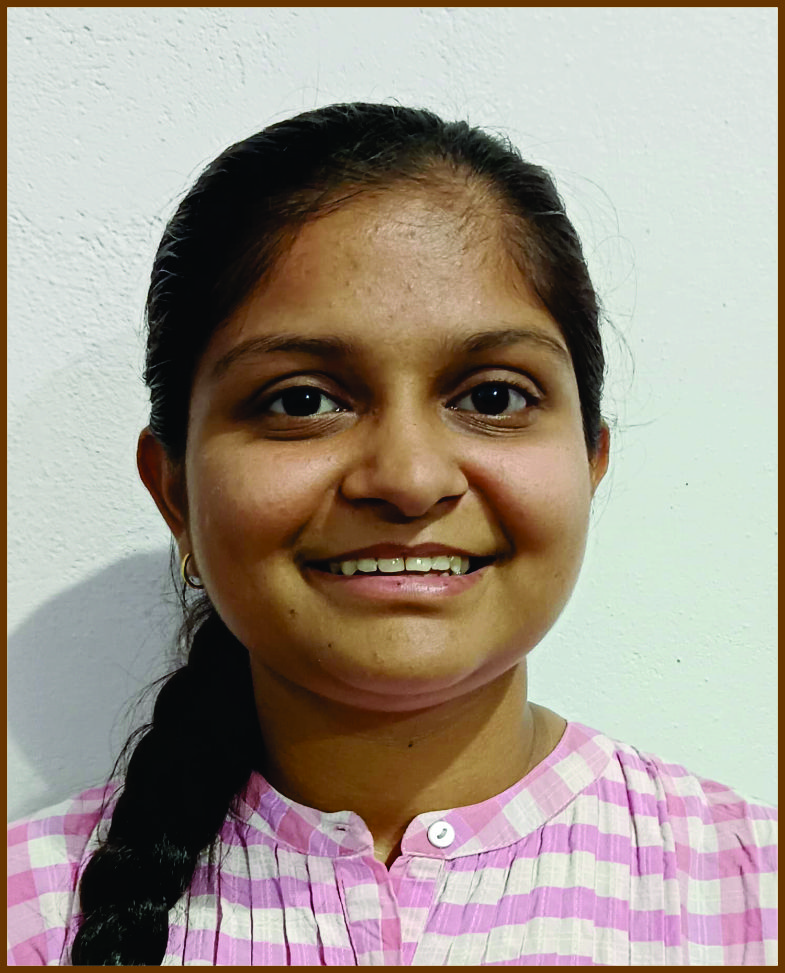
"When I joined GD Coaching Classes after 10th, I was really afraid of Maths. But the teachers explained everything so well that I ended up scoring 95 marks a jump from 45 in 10th in 12th ! Math, which I used to hate, is now my favourite subject."

"Honestly, my parents tried every coaching centre for me, but they didn't see any progress. However, after I joined GD, they started telling our neighbour’s, 'Aajkal isme bohot improvement hua hai, din bhar padhta hai."
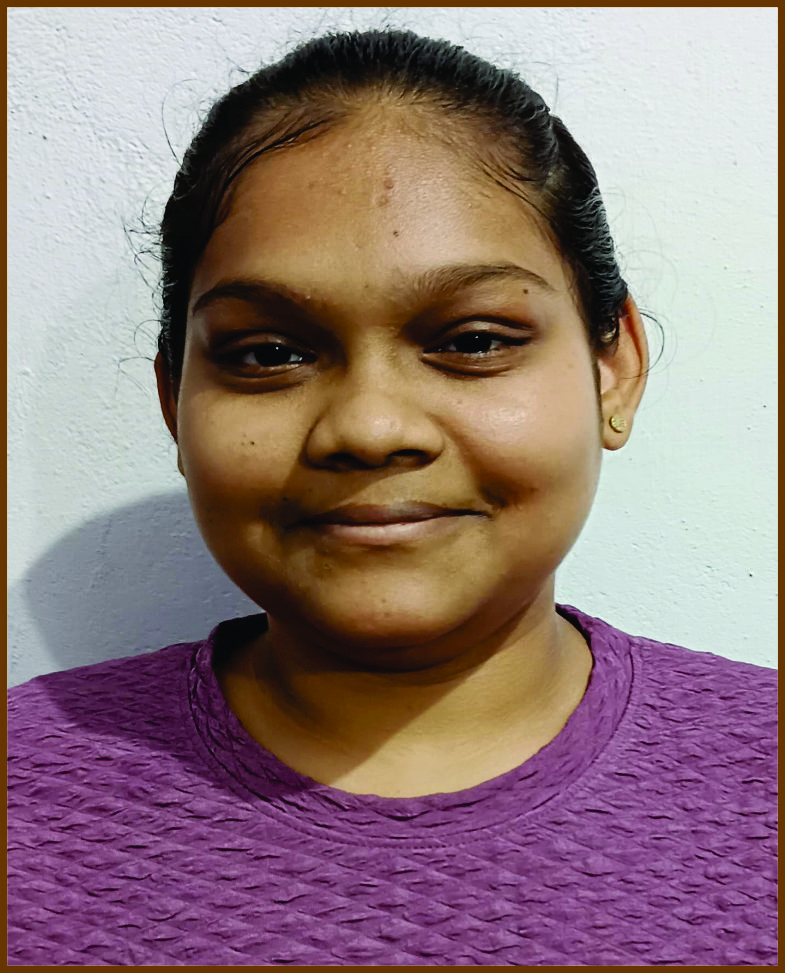
"I feel truly fortunate to have joined GD Coaching Classes. I had scored very less percentage in my 10th grade, but after two years of consistent hard work and the invaluable guidance of my teachers, I was able to pass 12th exam with flying colours. It was a moment of surprise and pride for my parents."

After my 10th boards, my parents worried about choosing the right coaching class. Joining GD Coaching Classes became the turning point of my life. I’ve grown tremendously since then and strongly recommend GD to anyone who truly wants success and growth.

GD Classes offers everything a student truly needs for success - strong foundational concepts, consistent practice sessions, and personalized one-on-one support from experienced teachers. The focused approach and motivating environment make learning effective, rewarding, and absolutely worth joining for every student.

The offline setup at GD Classes ensures personal attention and focused learning, while the upcoming LMS portal will make studying even more flexible and accessible. It’s truly the best and most reliable place for dedicated JEE and NEET preparation.
In 12th grade, I scored only 26 percentile in MHT-CET. After joining GD Coaching’s repeater batch, my score rose to 91.63 percentile. Now, I’m becoming my village’s first engineer—joining GD truly transformed my life and future completely.